First launch on Mac
This test build has not been notarized by Apple. If you downloaded the installer from the official WindReign website, moved the game to Applications and trust its source, follow these steps.
1. Choose Done in the first alert
Double-click WindReign in Applications. If macOS says it did not open WindReign, click Done at the lower left to keep the app.
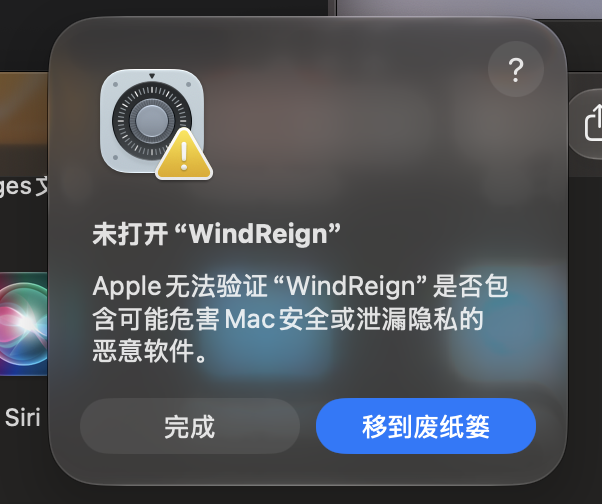
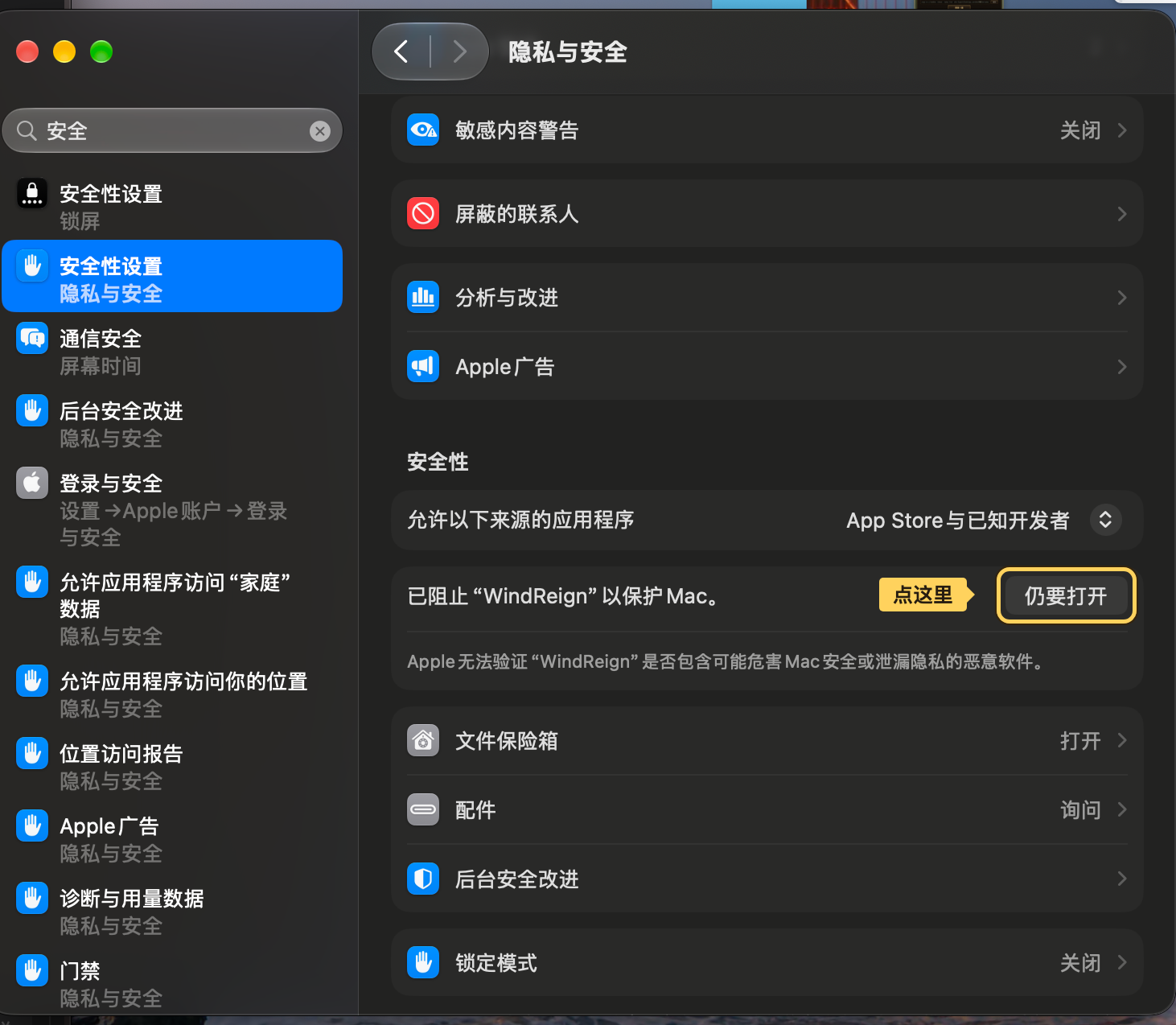
2. Find Open Anyway for WindReign
Open the Apple menu → System Settings → Privacy & Security. Scroll to Security. On the row that says WindReign was blocked, choose the button outlined in yellow: Open Anyway. If the row is missing, try opening WindReign again and return to this panel.
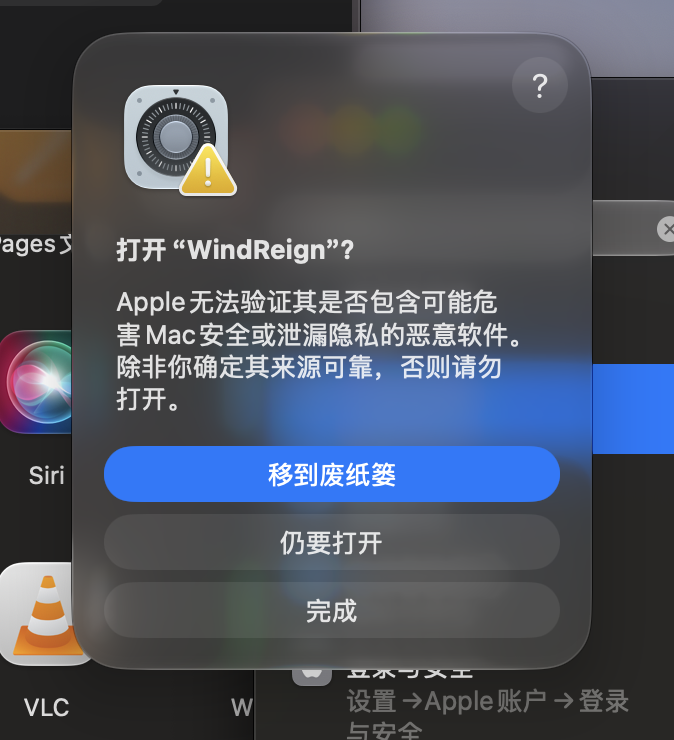
3. Confirm Open Anyway
Check that the confirmation names WindReign. Of the three buttons, choose Open Anyway in the middle.
4. Verify your identity on the Mac
If macOS asks you to authenticate, use Touch ID or choose Use Password… and enter the Mac administrator’s credentials in the system prompt. If the game does not appear, open WindReign from Applications again.